.png?width=200&height=200&name=dovetail%20workmarklogo%20(1).png)

A project briefing does not always need to be another document.
If you already have a Copilot Notebook containing your project plan, status updates, meeting notes and key decisions, you can turn that information into an Audio Overview. Essentially, it’s like a podcast.
This gives you a conversational briefing that you can listen to before a meeting, during a journey or while getting up to speed on a project. It will not replace checking the original documents, but it can give you a useful first pass through the information.
This guide shows you how to create one, customise it and check it against your sources.
What you will create
By the end, you will have:
- An Audio Overview based on the references in your Copilot Notebook
- A format and length suited to how you want to use it
- A saved copy that is clearly named and ready to share, where the save option is available
Before you begin
You will need an existing Copilot Notebook containing at least one reference.
For a useful project overview, add a small set of current, reliable sources such as:
- The approved project charter
- The current project plan
- The latest status update
- Current risk information
- An email recording an important decision
- Recent meeting notes or a transcript
Five or six useful sources are better than a large collection of old drafts and duplicate files. The Audio Overview can only work from the information available in the Notebook, so check the reference list before you begin
Step 1: Check the Notebook references
Check that:
- The latest project plan is included
- The most recent status update is present
- Confirmed decisions are supported by a reliable source
- Important risks and dependencies are included
- Old drafts and duplicate files have been removed
- There is no information that should not appear in a saved audio file
If two documents disagree, work out which one should be treated as the current source before generating the audio.
The finished overview may sound polished even when the Notebook contains incomplete or outdated information. Always fix the sources first.
Step 2: Open the Audio Overview tool
You can create the Audio Overview from the Microsoft Copilot app or from the same Notebook in OneNote.
In the Microsoft Copilot app
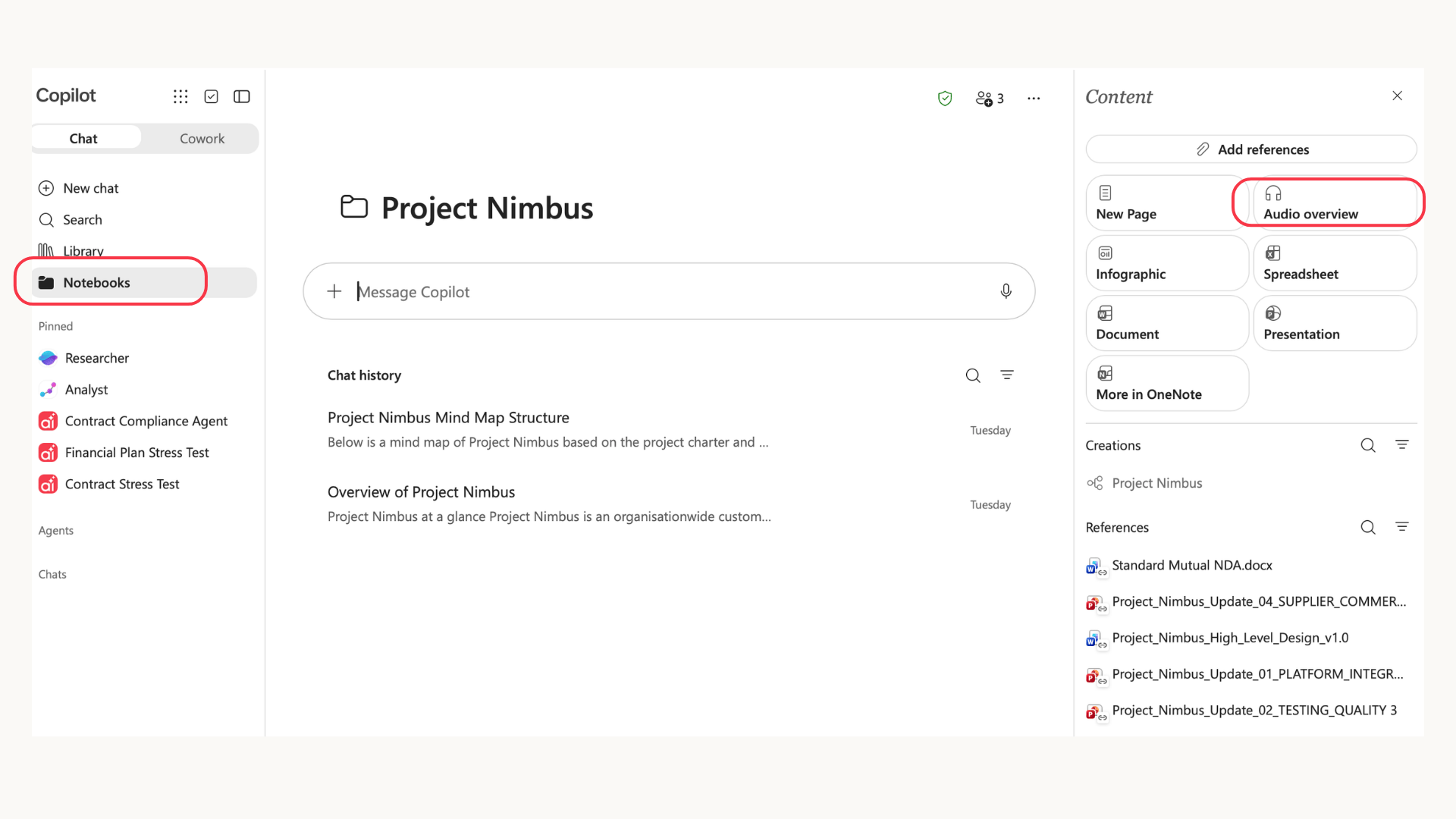
- Open the Microsoft Copilot app.
- Select Notebooks from the left-hand navigation.
- Open your project Notebook.
- Open the Content pane on the right.
- Select Audio overview.
- Wait for the overview to generate.
- Select Play.
In OneNote
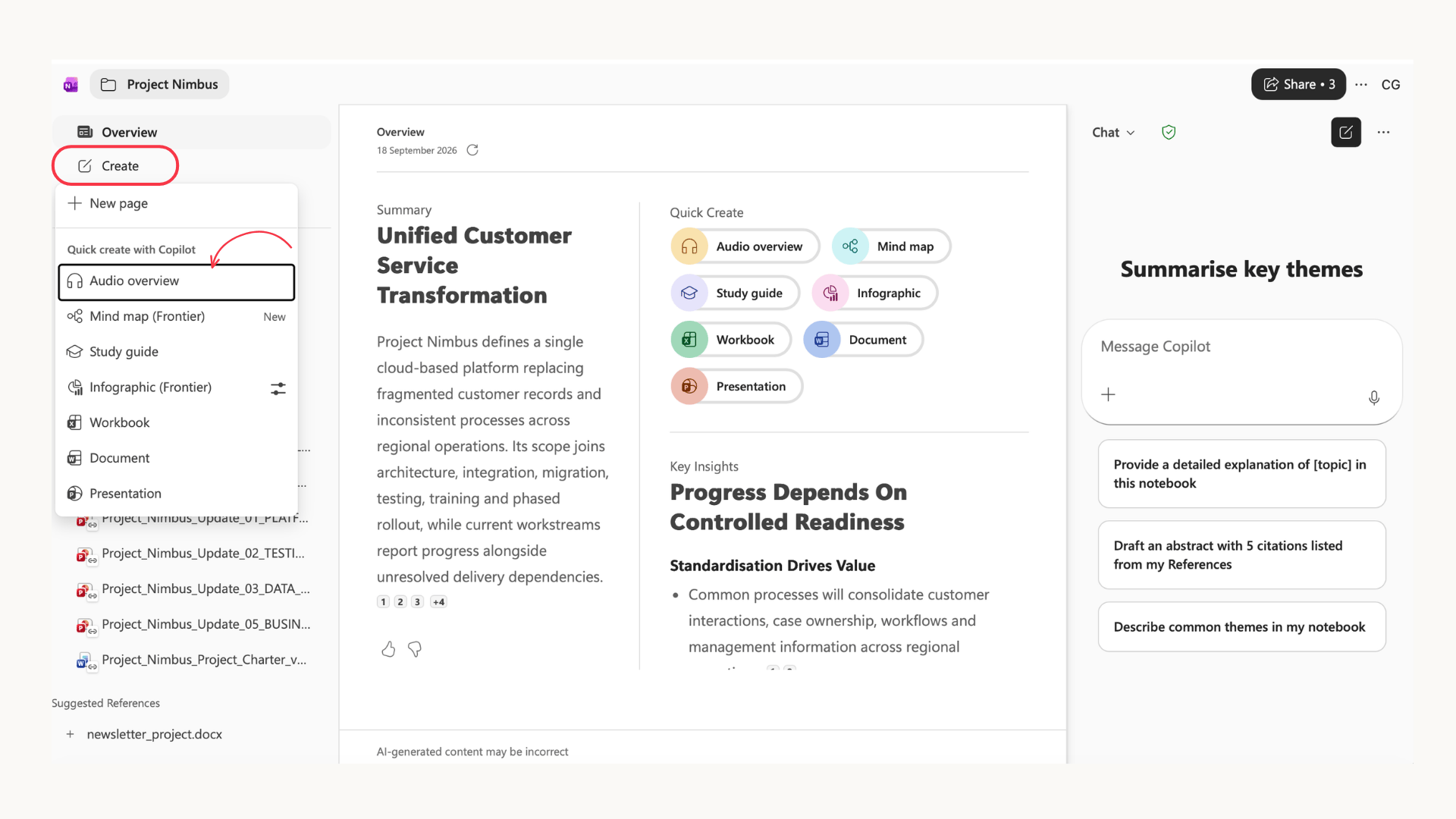
- Open the same Copilot Notebook in OneNote.
- Go to the Overview page.
- Find the Quick Create section.
- Select Audio overview.
- Review the available customisation options.
- Select Generate audio.
Audio Overview requires at least one reference in the Notebook. Microsoft’s guidance in the working instructions also notes that availability is tied to supported commercial work or school accounts and that usage limits may apply.
Step 3: Choose the audio format
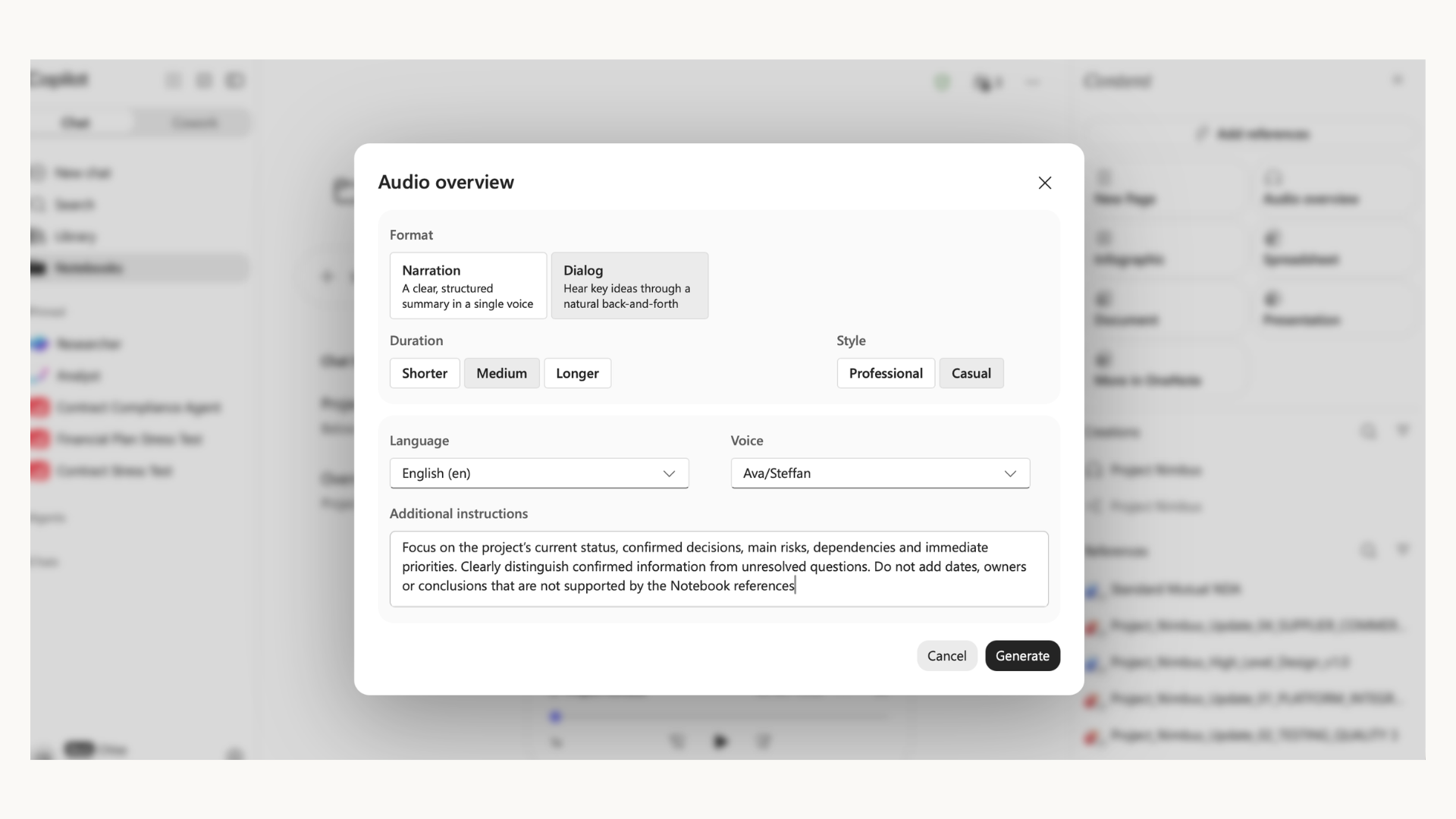
Depending on the options available in your version of Copilot, you may be able to change the format, voice, style and duration of the overview.
For example, you could choose:
- A straightforward narrated briefing
- A more conversational, podcast-style discussion
- A shorter overview for a quick update
- A longer version for a fuller project handover
Choose the format based on what you need from the audio.
A short narrated version may work well before a meeting. A longer conversational version may be more useful when you are taking over a project and need to understand its broader story
If the interface includes an additional instructions box, use it to explain what the overview should focus on.
For example:
Focus on the project’s current status, confirmed decisions, main risks, dependencies and immediate priorities. Clearly distinguish confirmed information from unresolved questions. Do not add dates, owners or conclusions that are not supported by the Notebook references.
When you are happy with the settings, select Generate audio.
Step 4: Listen to the Audio Overview
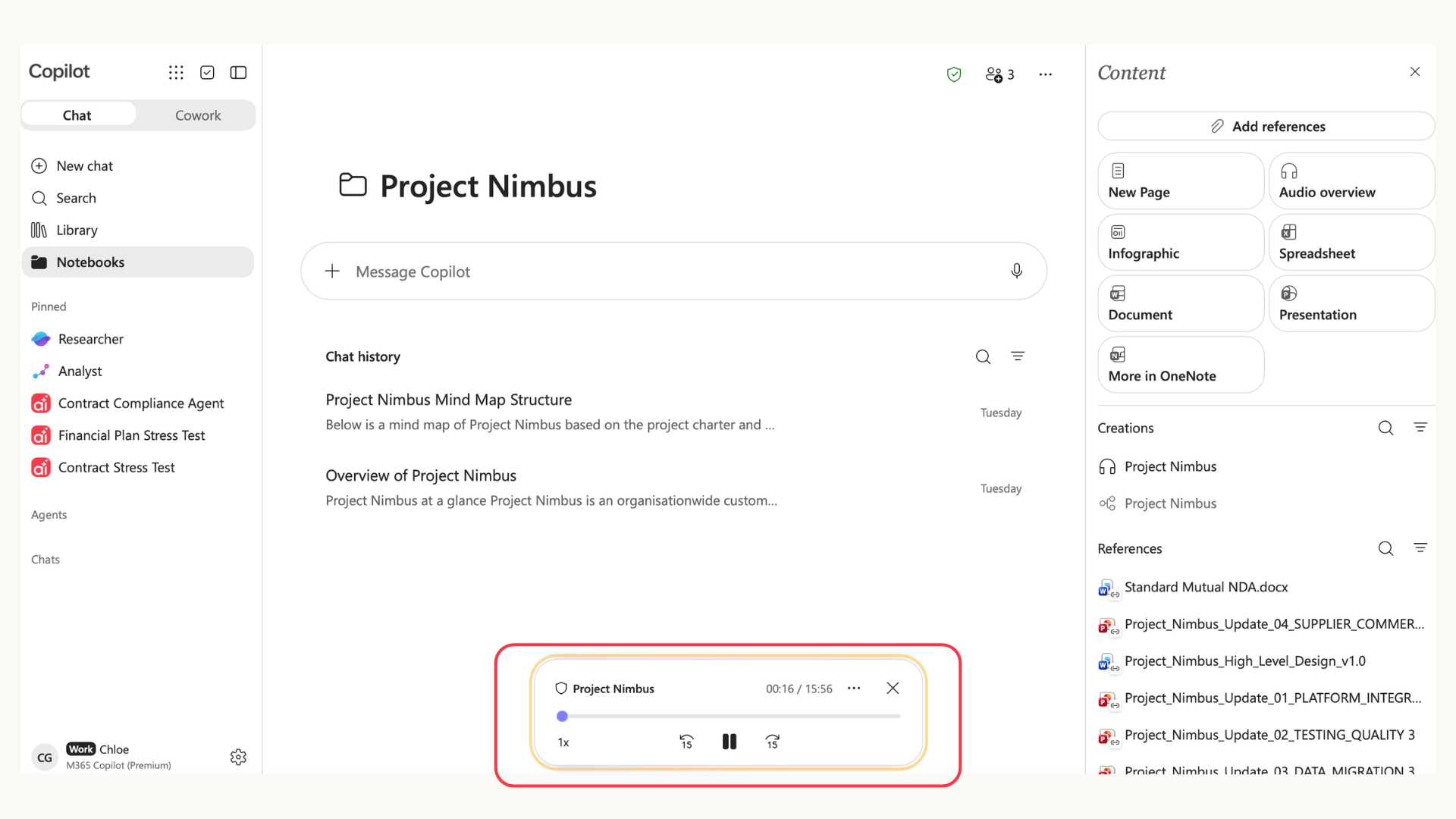
Once the audio has been generated, open the player and listen to the full overview.
The player may allow you to:
- Play or pause the audio
- Move backwards or forwards by 15 seconds
- Change the playback speed
- Delete the overview
- Save it to OneDrive
- Provide feedback
The exact controls available can depend on the Copilot experience you are using.
Step 5: Check the audio against the sources
Do not assume the Audio Overview is correct because it sounds confident or natural.
Check whether it:
- Describes the purpose of the project accurately
- Uses the latest status update
- Separates confirmed decisions from proposals
- Represents risks without exaggerating them
- Explains dependencies correctly
- Avoids inventing dates, owners or figures
- Acknowledges unclear or contradictory information
- Gives the right amount of attention to the important points
If something sounds wrong, return to the original source and check it.
For example, the audio may treat a proposed date as confirmed because an older project plan is still included in the Notebook. It may also miss an important decision if the email containing it was never added as a reference.
Record any discrepancy and trace it back to the reference list.
Step 6: Correct the Notebook and regenerate the audio
If the overview is incomplete or incorrect, check the original sources and update the Notebook as needed:
- Remove outdated or duplicate references and add any missing source.
- Confirm that the correct sources appear in the reference list and contain the information you need.
- Ask the Notebook for a fresh written briefing and check its answer against the original sources.
- Delete the existing Audio Overview and generate a new one.
- Listen to the new version and check that it addresses the original problem.
Changes to the Notebook’s references do not update an Audio Overview that has already been generated. If the project information changes, generate and check a fresh version before sharing it.
Step 7: Save the checked Audio Overview
If the save option is available, save the checked overview to OneDrive.
Use a clear file name that includes the project and the date it was created.
For example:
Project Nimbus Audio Briefing - 25 September 2026
This makes it clear which project the recording covers and when it was generated.
Before sharing it, check:
- Whether the audio contains confidential project information
- Whether the recipient should have access to that information
- Whether the content is still current
- Whether the recipient can access the original sources if they need to verify something
The audio is a separate project output. It should not be treated as a live version of the Notebook after it has been saved.
Troubleshooting
Try creating your own “podcast”
Microsoft is adding a lot of upgraded and added features around the suit using the power of Copilot. We have a series on adding automations onto SharePoint and other use cases of using HTML.
For more about Notebooks and everything that Copilot can already do inside your Microsoft tenant, contact us using the form below.