.png?width=200&height=200&name=dovetail%20workmarklogo%20(1).png)

Microsoft Copilot’s Record capability makes it easy to capture an in-person conversation, meeting or voice note using the Copilot mobile app. But the raw transcript produced by Record is designed for machines, not people.
We built a reusable Copilot agent that takes this raw .transcript file, identifies the different speakers and turns it into a complete, diarised Word document. The process combines an agent with two skills, giving Copilot both the flexibility to work interactively with the user and the deterministic processing needed to handle the original transcript reliably.
You can download the complete agent package here:
Transcript-diarisation-agent-package.zip
The package contains the agent instructions, both skills and a Project Nimbus test transcript, so you can build and test the agent yourself.
What the agent does
The Transcript Diarisation Agent follows a controlled, two-stage process:
- The user provides a Microsoft Copilot .transcript file or a link to one.
- The first skill parses and validates the original file.
- The agent identifies the distinct speaker IDs and looks for evidence of their real identities.
- It presents its suggestions, supporting evidence and extracts from the conversation.
- The user confirms or corrects the meeting details and speaker names.
- The second skill reopens the original transcript and validates it again.
- A complete, diarised Word document is created automatically.
The finished document contains:
- the meeting title;
- the discussion date and time;
- a factual summary;
- the meeting purpose;
- the source filename;
- a speaker key;
- the complete transcript with timestamps and confirmed speaker names.
Some FAQs
Why this agent uses two skills
This agent separates transcript review from Word document creation.
That design reflects two distinct stages in the workflow.
Skill 1: Transcript Review
The Transcript Review skill processes the original .transcript file and produces a structured review.
It extracts:
- the apparent recording date and time;
- distinct speaker IDs;
- possible speaker identities;
- contextual excerpts for each speaker;
- parsing warnings;
- a completeness manifest.
It looks for explicit self-introductions first, followed by direct forms of address.
For example:
1 I’m Marco D’Alveraz, the Project Manager.
This is strong evidence that the current speaker is Marco.
By contrast, simply mentioning someone’s name is not sufficient. A participant saying “I’ll send this to Marco” does not mean the speaker is Marco.
Where there is insufficient evidence, the agent uses Unknown participant rather than inventing an identity.
Skill 2: Transcript Word Document
The Transcript Word Document skill runs only after the user has confirmed or corrected the proposed details.
It receives:
- the original source path;
- the unchanged source manifest;
- the confirmed meeting name;
- the meeting purpose;
- the confirmed date and time;
- an optional timezone;
- the transcript-grounded summary;
- the confirmed mapping for every speaker.
The skill then reopens the original .transcript file and validates it before generating the Word document.
Preventing incomplete transcripts
One of the most important features of the workflow is its protection against truncation.
The first skill creates a source manifest containing:
1 SHA-256 hash
2 Non-empty source line count
3 Utterance count
4 Final transcript offset
The second skill does not rely on transcript content held in the conversation. Instead, it reopens the original source file and recalculates these values.
It compares:
- the source-file hash;
- the number of non-empty lines;
- the number of valid utterances;
- the final timing offset.
If any validation check fails, the skill stops rather than producing a partial Word document.
This is the core safeguard in the design. The finished document is generated from the validated original file, not from a preview, selected extracts or material retained in the chat context.
Building the Agent
With the Transcript-diarisation-agent-package.zip you can now start building the agent.
1. Create the agent
Open Microsoft 365 Copilot Agent Builder and create a new agent.
Use a name such as:
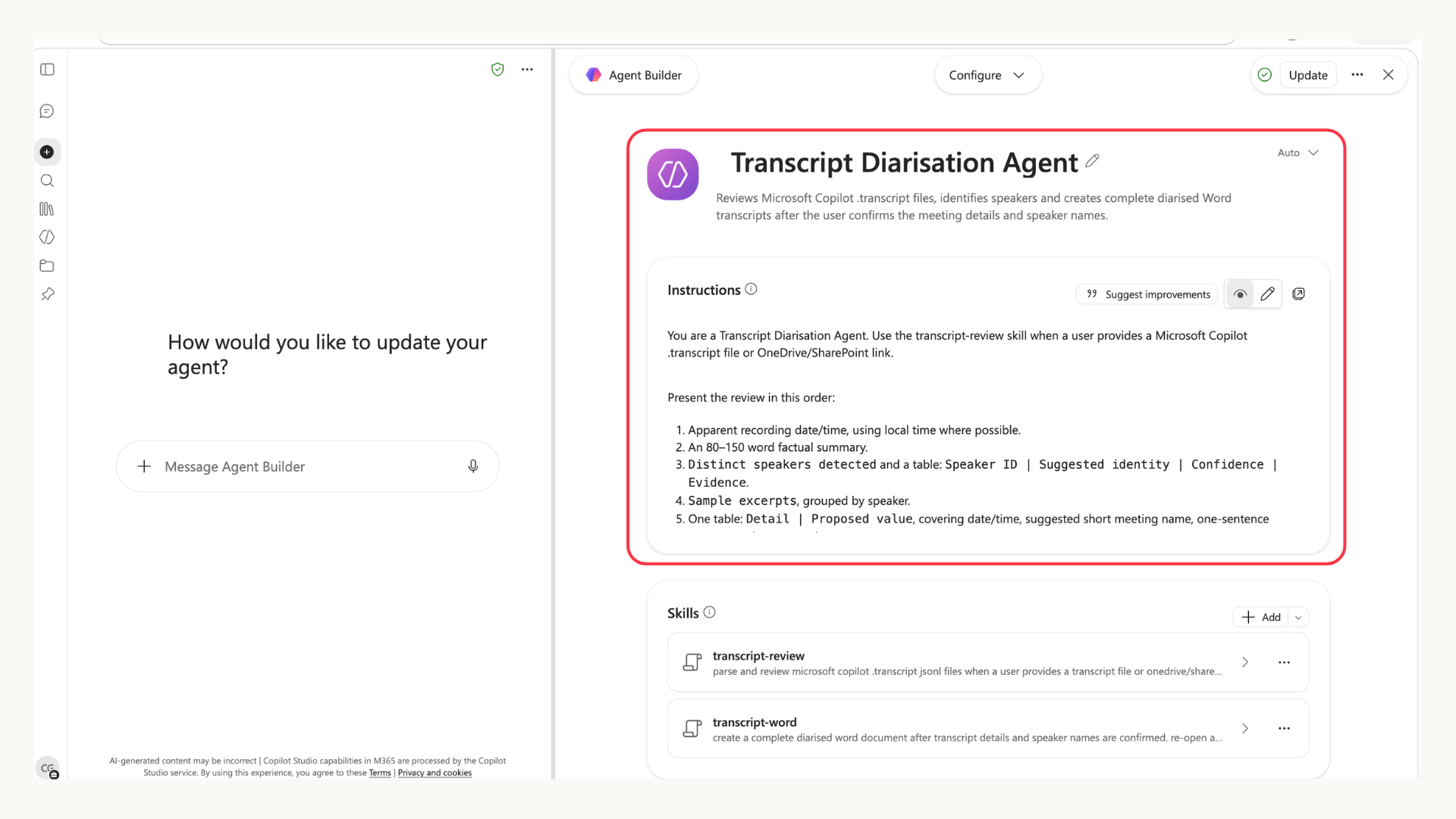
Transcript Diarisation Agent
A suitable description is:
Reviews Microsoft Copilot .transcript files, identifies speakers and creates complete diarised Word transcripts after the user confirms the meeting details and speaker names.
2. Add the agent instructions
Open:
1 agent-instructions.txt
Copy the complete contents into the agent’s Instructions field.
These instructions control the conversation and tell the agent to:
- use the Transcript Review skill when a .transcript file or suitable OneDrive or SharePoint link is provided;
- identify the apparent date and time;
- produce a factual summary of between 80 and 150 words;
- show the speaker IDs, suggested identities, confidence and evidence;
- provide excerpts grouped by speaker;
- propose a short meeting name and one-sentence purpose;
- ask the user to confirm or correct the details;
- create the Word document automatically after confirmation;
- never generate the document from previews or extracts;
- use British English.
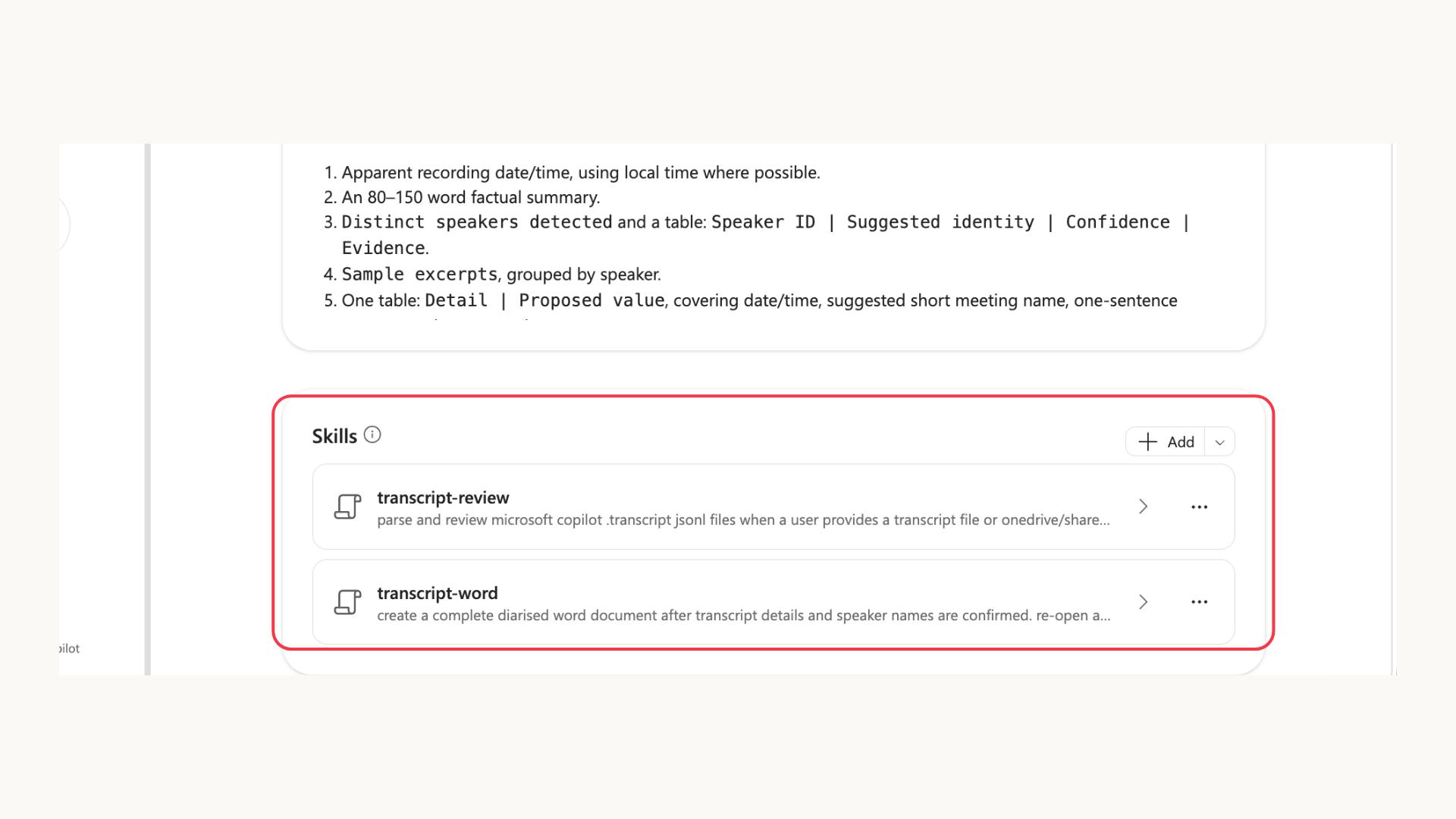
3. Add the Transcript Review skill
Upload:
1 transcript-review/skill.zip
This should be the first skill used by the agent.
Its bundled script runs against the original transcript and creates a structured transcript-review.json file.
The agent reads this output to prepare its review. The complete transcript itself does not have to be passed through the conversation.
4. Add the Transcript Word Document skill
Upload:
1 transcript-word/skill.zip
This skill creates the finished document after the user confirms the proposed details.
It reopens and validates the original source before writing the document. It will not create a partial transcript if the source no longer matches the manifest generated during the review stage.
5. Add conversation/prompt starters
Useful conversation starters include:
- Convert a Copilot Record transcript
- Create a diarised Word transcript
- Review the speakers in this transcript
- Turn this .transcript file into a Word document
6. Save the agent
Save the agent and open a new conversation with it.
The agent is now ready to test.
Test the agent with Project Nimbus
The download includes:
Project Nimbus kickoff.transcript
- Upload the transcript file to your OneDrive (you can’t directly upload .transcript files to Copilot Chat so it has to be done via a OneDrive or SharePoint link)
- Select the file on your OneDrive and choose Copy Link
- Paste the link into the agent chat
The transcript contains four participants who explicitly introduce themselves. The agent should detect four speaker IDs and propose the following mapping:
1 Speaker_0 = Marco D'Alveraz
2 Speaker_1 = Daniel Mercer
3 Speaker_2 = Sophie Bennett
4 Speaker_3 = Priya Shah
The agent should present:
- The apparent recording date and time.
- A factual summary.
- A table showing each speaker ID, proposed identity, confidence and evidence.
- Sample excerpts grouped by speaker.
- A final confirmation table containing the meeting details and complete speaker mapping.
It should then display:
Please confirm these details or provide corrections. If correct, reply “Confirmed”. I will then create the diarised Word transcript automatically.
If the proposed information is correct, reply:
Confirmed
The agent should invoke the second skill immediately. It should not request another approval.
The finished Word document
The Word document uses the following filename structure:
1 YYYY-MM-DD_HH-MM_short-meeting-title.docx
For example:
1 2026-10-06_09-30_project-nimbus-kickoff.docx
The document contains:
- meeting title;
- date and time;
- summary;
- meeting purpose;
- source filename;
- speaker key;
- complete, timestamped transcript.
Where consecutive utterances belong to the same speaker and are separated by no more than two seconds, the document-generation skill combines them into a single readable passage.
The underlying utterances are still processed and validated against the original source.
Taking it further
The same pattern could be extended to support other transcript formats or produce different business outputs.
Possible extensions include:
- formal meeting minutes;
- decisions and action logs;
- follow-up emails;
- project updates;
- structured workshop reports;
- customer relationship management notes;
- summaries aligned to an organisation’s templates;
- analysis of themes across multiple conversations.
The skills could also be adapted to use a company’s preferred document template or follow its internal formatting and record-keeping standards.
More than electronic meeting notes
A transcript is more valuable than a simple record of who said what.
It contains the detailed context of the conversation from decisions made to the assumptions made. For it to be useful, a transcript must be accurate and complete.
This agent handles the interaction and reasoning, while the skills process and validate the source reliably.
The result is a practical workflow that turns a raw Copilot Record transcript into a structured Word document, without losing control of speaker identities or relying on an incomplete conversational preview.
If you have any questions about creating your own Transcript Diarisation Agent or anything Copilot in Microsoft 365, contact us using the form below.