.png?width=200&height=200&name=dovetail%20workmarklogo%20(1).png)

Part 2 of our three-part guide to automating contract management in SharePoint.
Six months after a contract is signed, nobody remembers it exists until a deadline appears. By then, the review date has passed, the renewal notice window is closing, and procurement or legal are left trying to work out what was agreed, who owns it and whether there is still time to act.
This is the real value of Autofill metadata: it turns the important details buried inside documents into structured information SharePoint can understand, so you can spot when something needs attention before it becomes a problem.
Extracting information is only the first step. The next challenge is making sure people act on it. That's where SharePoint rules become useful.
Rules in SharePoint are not new, but they have fundamentally changed in what they can do.
In this guide, you will create and test a rule that notifies someone when a contract field changes to a selected value. You will also learn how to choose a suitable trigger and recognise when a process needs Power Automate instead.
What are SharePoint rules
SharePoint rules create simple automated responses inside a list or document library.
A rule connects two things:
- A trigger, such as a date approaching, a file being added or a column value changing.
- An action, such as sending an email notification.
For example, a contract team could use a rule to notify someone when:
- A new contract is added to the library
- A lifecycle status changes
- A contract is marked for further attention
SharePoint rules themselves are not new. What's changed is that they can now work alongside features such as Autofill, allowing notifications to be triggered by information extracted directly from documents and stored as SharePoint metadata. This means the library can respond to contract information without someone having to open and read every file first.
What SharePoint rules can do
Depending on the library and its columns, you can create rules that notify someone when:
- A new file is added
- A file is modified
- A file is deleted
- A selected column changes
- A column changes to or meets a specified value
- A date stored in a column is approaching
For example, a rule could notify a policy owner when a review date approaches or alert a contract owner when a review status changes to Review required.
Rules are designed for straightforward notifications. They do not move files, start approvals, post messages to Teams or complete several actions. Processes like these require Power Automate.
Microsoft notes that rules based on multiple-lines-of-text columns are not supported, and a library can have only two rules using a date approaches condition. A rule can notify one or more people, or use a person column, but it cannot send to a group email address.
Examples for different document libraries
SharePoint rules are not limited to contract management. The trigger and recipient will depend on the information stored in each library.
| Document library | Example trigger | Notification |
|---|---|---|
| Contracts | Review status changes to Review required | Notify the contract owner |
| Policies | A review date is approaching | Notify the policy owner |
| Project documents | Status changes to Blocked | Notify the project lead |
| Supplier documents | A new document is added | Notify the procurement contact |
| Knowledge articles | Approval status changes to Approved | Notify the content owner |
| Reports | A department or category value changes | Notify the relevant team |
| Compliance documents | Status changes to Action required | Notify the compliance reviewer |
* The rest of this guide uses a contract library as the worked example, but the same steps can be adapted to other document libraries, columns and notification recipients.
Before creating a rule
You will need:
- A SharePoint document library containing the relevant contracts
- Permission to manage rules for the library
- At least one suitable SharePoint column to use as the trigger
If an Autofill column will trigger the rule, check that it returns consistent values across a varied sample of documents. A rule can only act reliably on the information stored in the column.
Create a rule in the contract library
For this tutorial, imagine that the library contains a choice column called Review status. When its value changes to Review required, the rule will notify the person responsible for checking the contract. You can replace these example names and values with those used in your own library.
Open the SharePoint document library containing the contracts and columns created in Part 1.
From the command bar:
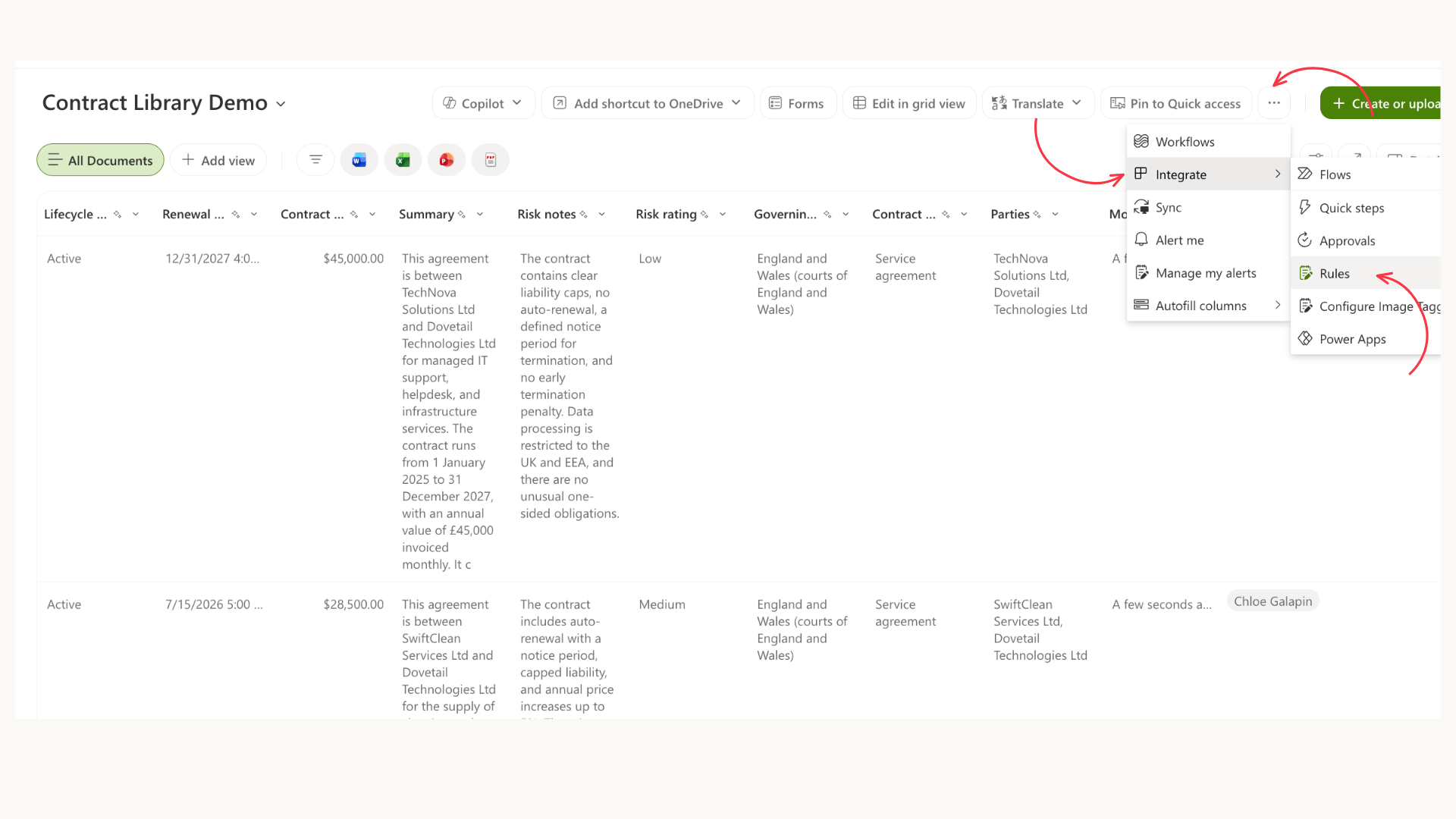
- Select Integrate.
- Select Rules.
- Select Create a rule.
- Choose the type of change you want SharePoint to monitor.
- Select the relevant column, where required.
- Choose the value or condition that should trigger the notification.
- Enter the name or email address of the recipient.
- Review the configuration.
- Create the rule.
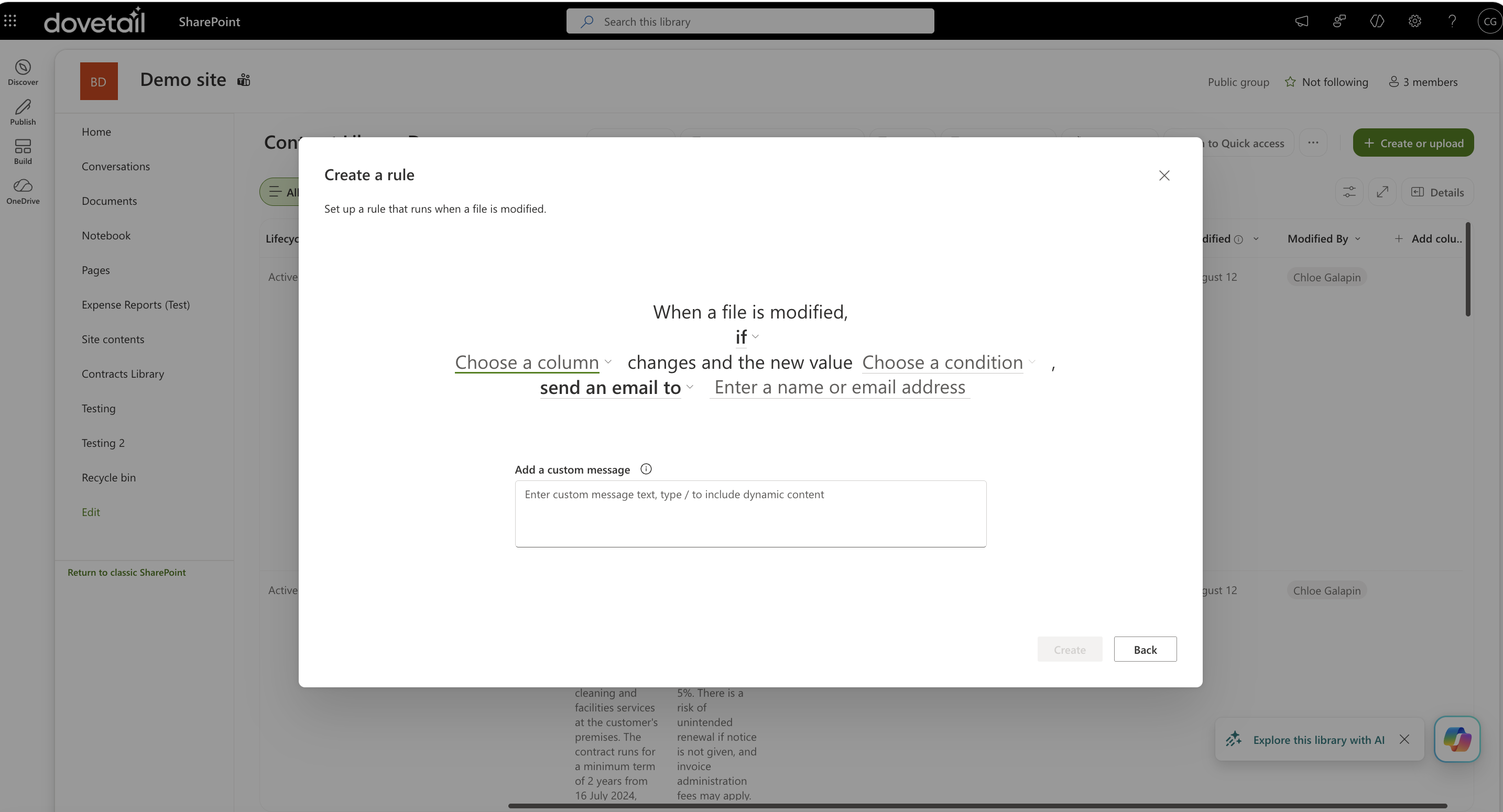
The options available will depend on the structure of the library and the type of rule being created.
As an example, a team could create a rule that sends a notification when a contract's review status changes to indicate that further attention is required.
Choose the notification recipient
Check that the standard SharePoint notification gives the recipient enough context to identify and open the contract.
Test the rule
Test the complete sequence with a sample file, including one change that should trigger the rule and one that should not. For example:
- Confirm the source column contains the expected value.
- Make the change that should trigger the rule and check that the intended person receives one notification.
- Open the contract from the notification.
Review and manage existing rules
Review, edit or remove library rules when the trigger, recipient or underlying process changes.
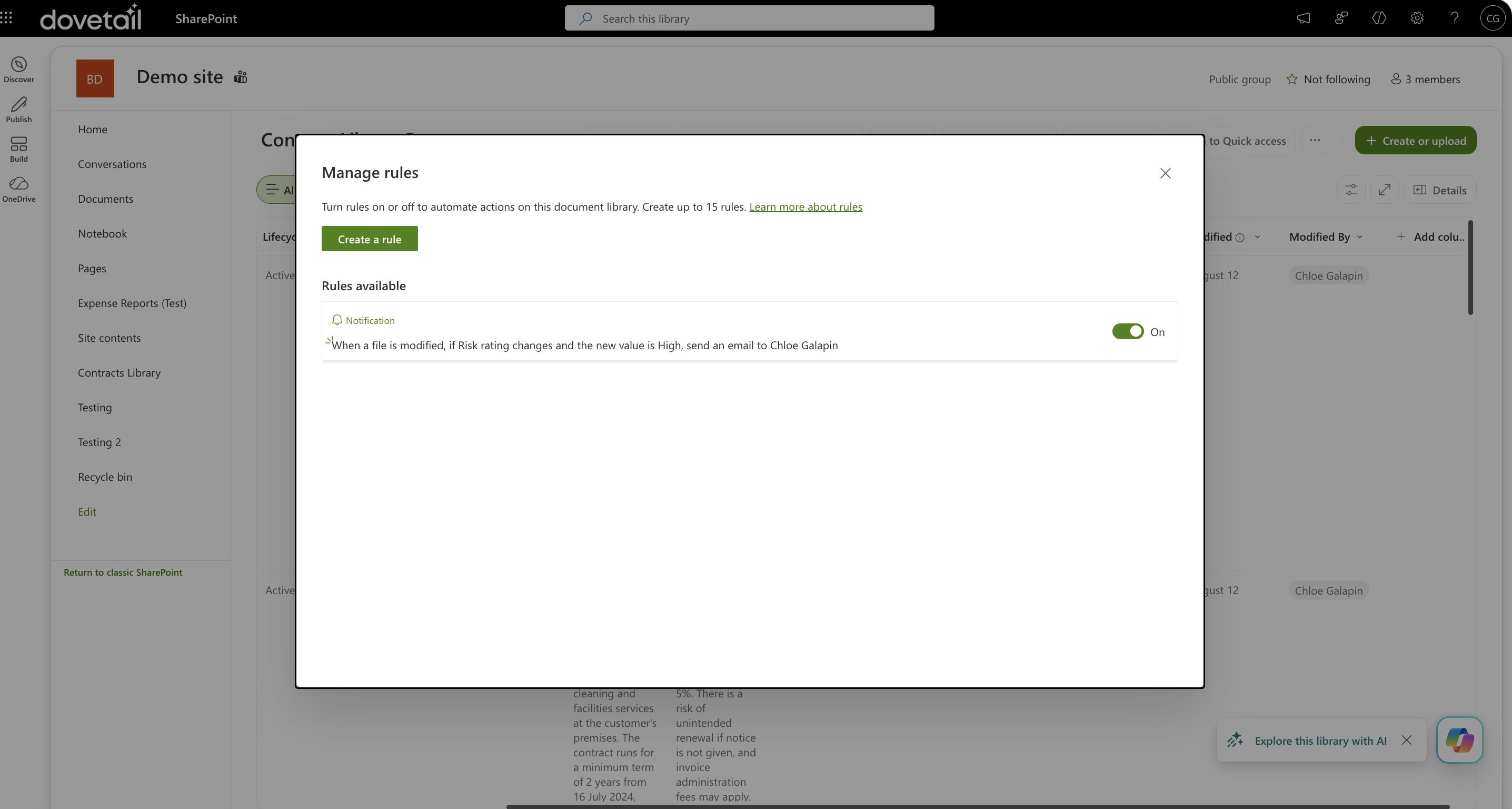
- Open the document library and select Integrate.
- Select Rules, then Manage rules.
- Open the relevant rule to review, edit or remove it.
Common issues to check
The rule does not appear to run
Check that the rule was created in the correct document library. Rules are associated with the library in which they were configured, so a rule created elsewhere will not monitor the intended contracts.
Also confirm that:
-
The rule is still active
-
The correct trigger was selected
-
The monitored column contains the expected value
-
The test was completed in the intended library
-
The recipient details are correct
The notification does not arrive
Check the recipient address and the email account's junk or filtered folders.
You should also confirm that the change genuinely met the rule's condition. A value that looks similar may not be the same as the value selected during configuration.
The rule sends too many notifications
Review how frequently the monitored value changes and whether every change deserves an alert.
A rule that is too broad can quickly create notification fatigue. Consider narrowing the condition or choosing a more meaningful point in the contract process.
If the notification requires several conditions to avoid false alerts, Power Automate may be the more suitable option.
The source value is incorrect
If the rule relies on an Autofill column, review the extracted value and the instruction attached to that column.
Test the instruction against more contract types and confirm that the result is stored consistently. The rule can only respond to the value SharePoint currently holds.
What nobody tells you about SharePoint rules
The most common mistake is choosing a trigger that changes too often.
A notification may work perfectly, but if it arrives every time somebody edits a document, people quickly stop paying attention. The best rules mark a point where somebody genuinely needs to act, such as a review becoming required or a renewal date approaching.
Test for false alerts, not just successful ones
Many teams test whether a notification appears. Fewer test whether it stays silent when it should.
Before relying on a rule, make one change that should trigger an alert and another that should not. A rule that sends unnecessary notifications creates more work than it removes.
The rule is only as reliable as the data behind it
If a rule depends on an Autofill column, the quality of the notification depends on the quality of the extracted value.
Test Autofill against different contract formats before building automation around it. SharePoint can only respond to the information stored in the column.
Start with one useful alert
You do not need dozens of rules.
Start with the alert that would prevent a missed review, renewal or approval. Once people trust the notifications, you can decide whether additional rules add value or just create noise.
Where Sharepoint rules become limited
SharePoint rules are useful for simple notifications, but they are not designed to manage every stage of a document process.
Use Power Automate when the process needs several conditions, routing, approvals, file movement, customised messages or more than one action.
What comes next
Your library can now use a selected change or value to notify the appropriate person. Autofill surfaces the contract information, and the SharePoint rule responds to it.
In Part 3, we will use Power Automate (now can be referred to as Workflows) for processes that need to wait for data, evaluate several conditions, route files or perform different actions. Because Autofill has already surfaced the relevant information, the flow can act on structured SharePoint values rather than interpret the whole contract.
For the most successful and useful rules set up in Sharepoint you need solid Autofill columns, read part 1 of the series.
What a SharePoint that works like this?
Rules are the easy part. Deciding what a library should hold, how it should be structured and which alerts are actually worth sending takes more thought.
Whether you need help with one library or your whole SharePoint setup, we can work with what you already have or start from scratch with you.
Book a call and we will look at your library with you.