Copilot cost is no longer just the price of the license.
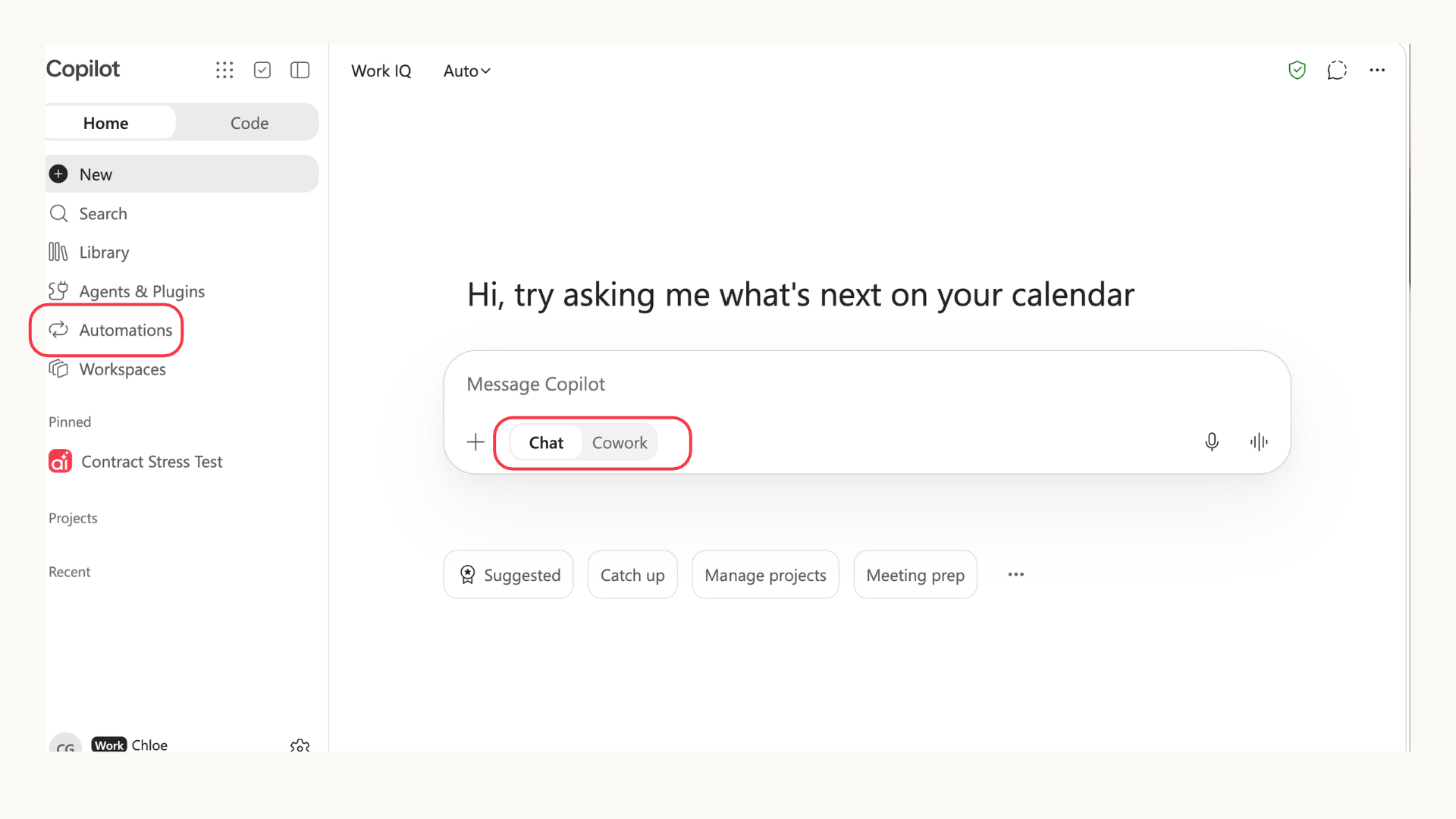
Copilot Chat is covered by your Copilot License. Cowork and several advanced services are billed separately, by use, in Copilot Credits.
That makes cost management something to agree before people start using them. Who should have access? What can they spend? Who checks usage? Without those decisions there's the danger of an unexpected bill.
Here's what costs extra, where to see page and how to keep it under control.
What's included and what costs extra
| Included in your Copilot licence | Uses Copilot Credits |
|---|---|
| Copilot Chat | Cowork |
| Scheduled prompts | Cowork Automations (every run) |
| Advanced work in SharePoint and OneDrive | |
| Code |
Scheduled prompts run in Chat and come with your Copilot licence. Cowork and the other services in the right-hand column are billed by use, on top of the licence.
That's where the first easy saving is. Say you want a summary of your inbox every morning. Set it up as a scheduled prompt in Chat and there's nothing extra to pay. Set up the same thing as a Cowork Automation and it uses credits every day it runs.
Neither option is wrong. Cowork can act for you, sending emails, booking meetings and building documents, while Chat helps you think and draft. Just pick Cowork because you need it to act, not out of habit.
What a credit really costs
Pay-as-you-go is $0.01 per credit, according to Microsoft's Copilot Credits Guide. The prepaid plan (P3) cuts that by 5% to 20%, depending on how many credits you commit to for the year. Prices are in US dollars and can change.
Four things decide how many credits a task uses:
- The model. More capable models cost more.
- Context. The more emails, files and meetings it reads, the more it costs.
- Tools. Every action, like sending an email or updating a document, adds to the total.
- Runtime. Long, multi-step tasks cost more than quick ones.
For scale, one heavy task using Astra cost about 4,500 credits in our own testing. That's our example, not a Microsoft rate. But it shows how fast a big task adds up.
Where can you see usage and costs?
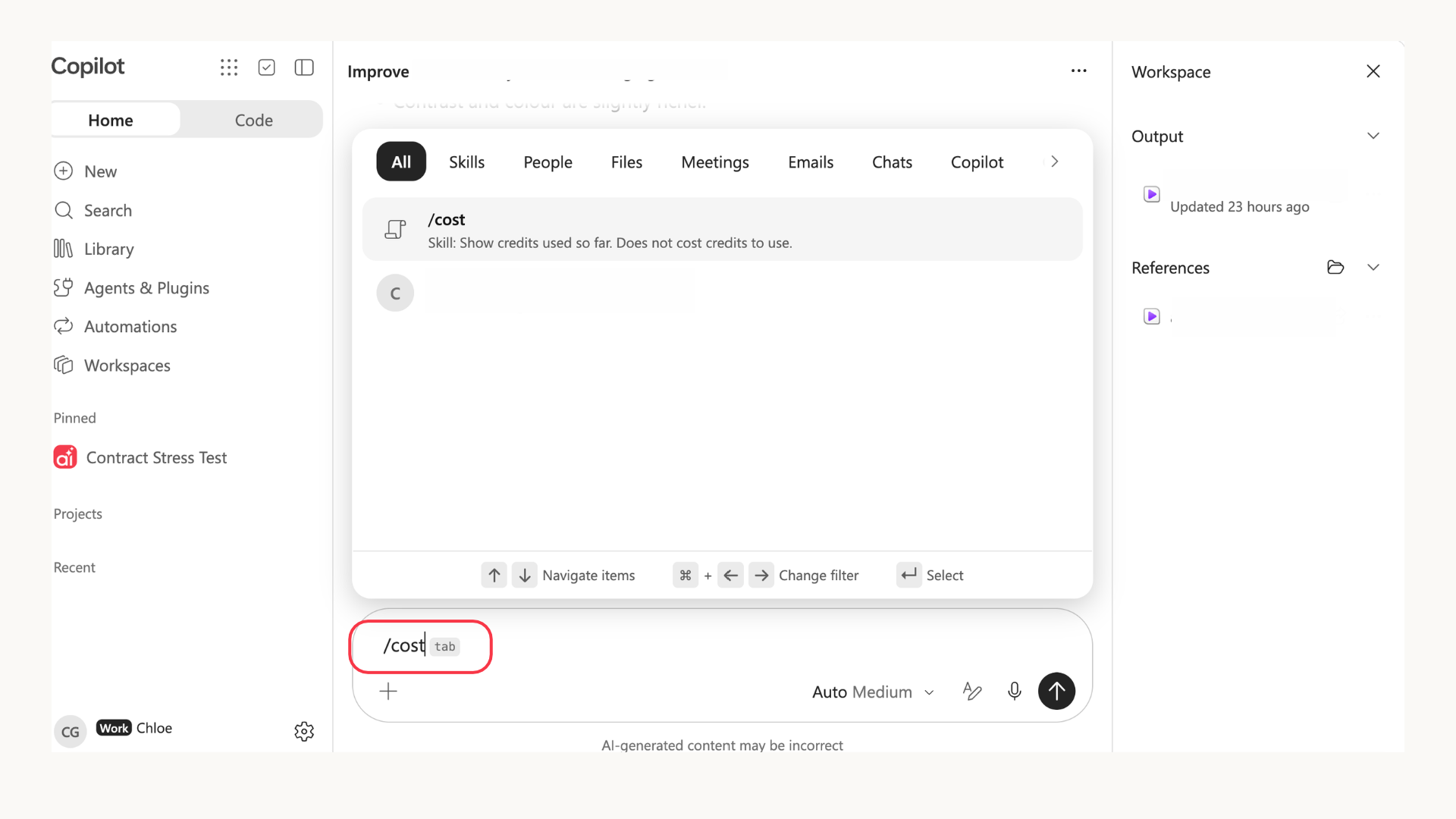
Track your usage: /cost
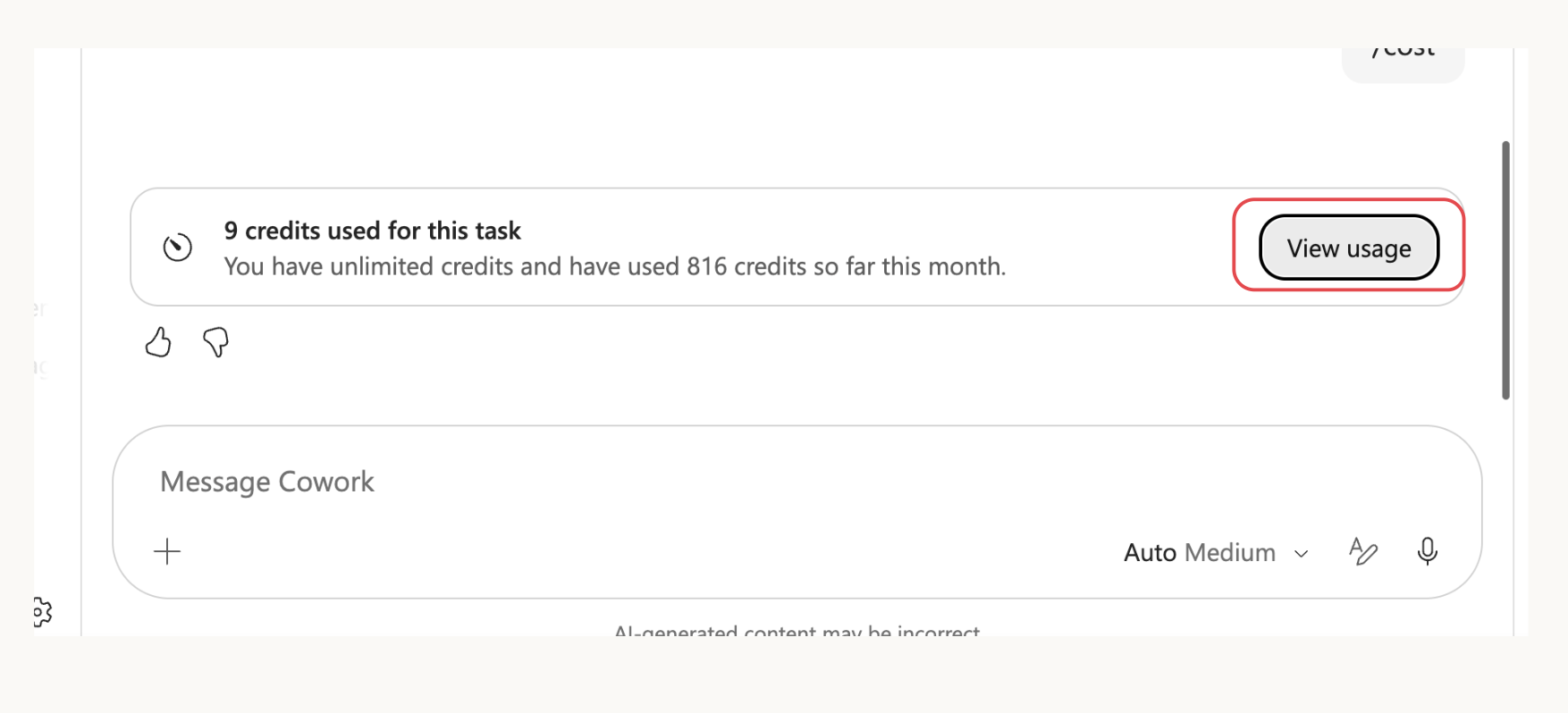
Type /cost in Cowork to see roughly how many credits a task has used, how many you've used this month and how many are left. Checking is free. It only shows what a task has already used, though. You can't check a cost before you run something.
The figure is an estimate, not your bill. Limits reset at the start of each month (midnight UTC), and unused credits don't carry over.
See your previous Cowork usage
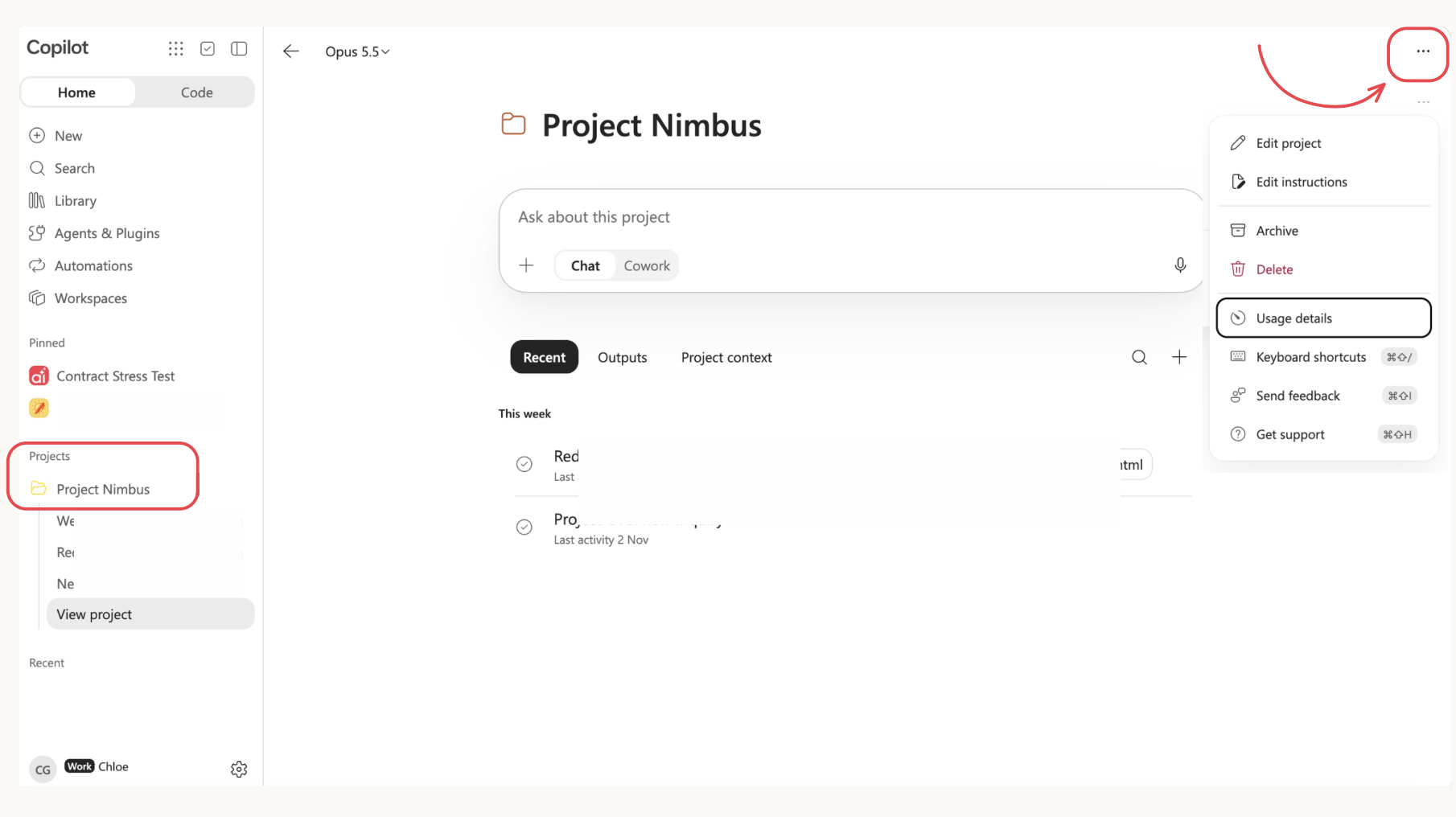
Another way of seeing usage is through Projects.
Open a project, select the three dots in the top-right corner, then choose Usage details.
In our testing, Usage details only appeared for projects. We could not access it from the three-dot menu in a standalone Cowork chat.
individual employees can use /cost and Usage details to understand their own consumption. Whoever manages company-wide cost needs the Microsoft 365 admin centre.
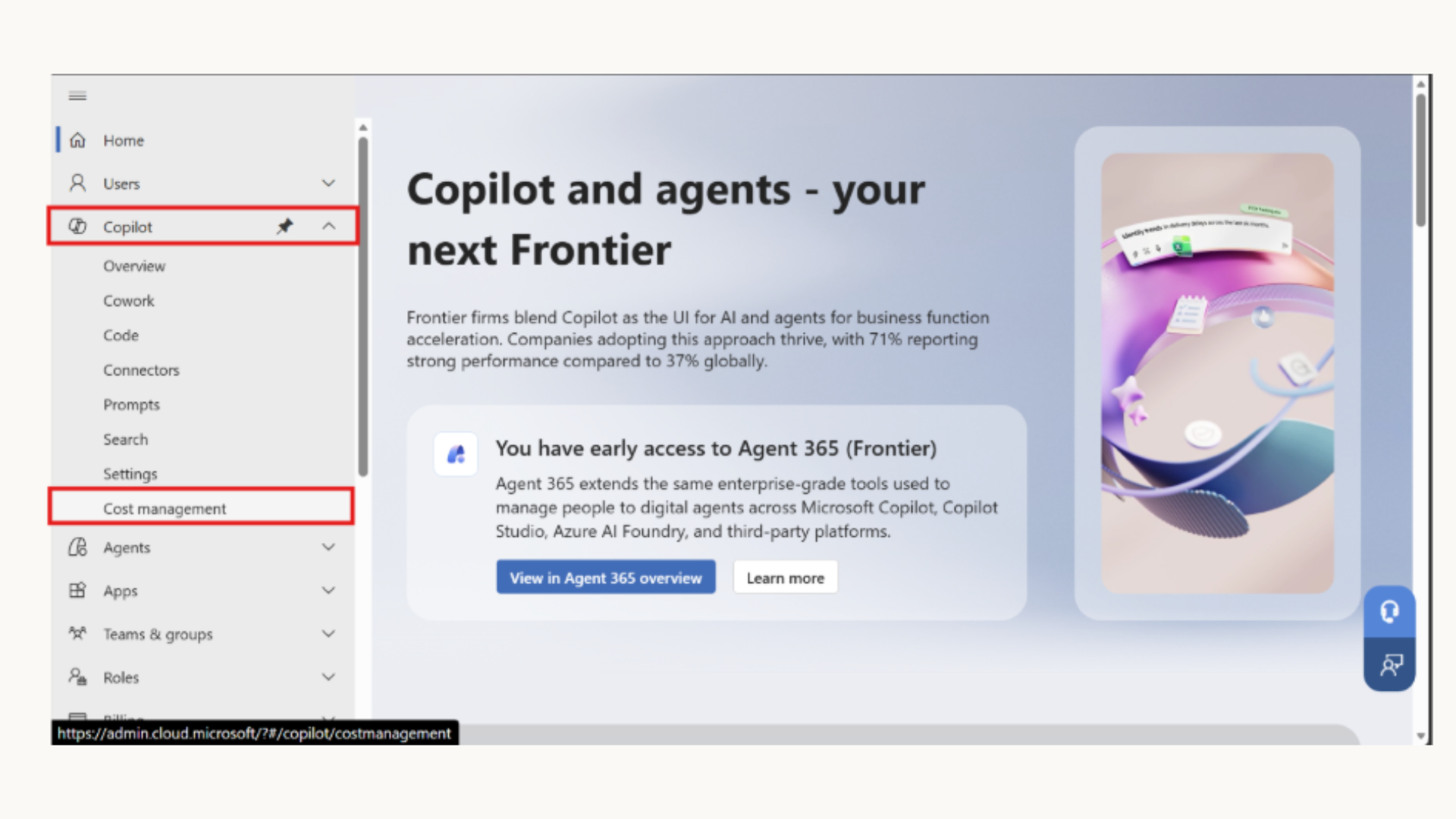
Under Copilot > Cost Management, authorised administrators can monitor usage across users and policies, see who is approaching a limit and decide whether budgets or access need to change.
Who needs to manage Copilot costs?
You do not need a large IT team to manage Copilot costs but someone still needs to own the controls.
In a smaller company, that might be a Microsoft 365 administrator, operations lead, finance or external Microsoft partner. They need to have the right role: Global and Billing administrators can set up the billing method. AI and License administrators can manage policies, limits and alerts once the billing arrangement exists.
Do not share a Global Administrator account between several people. It is best to assign the minimum role required and use your Microsoft partner for the initial configuration if necessary. Microsoft recommends limiting Global Administration access because it carries extensive permissions.
Today, Cowork stays off until an admin sets up billing and a spending policy covers the user. So nothing gets charged by accident.
That changes on 1 December 2026 for some licences. New Microsoft 365 Copilot Business licences bought through a Microsoft partner (CSP) will come with usage-based billing switched on. The default limit is 4,000 credits per user per month, and admins can change it. Existing licences you don't touch aren't affected. Enterprise licences aren't included, and at first it doesn't apply in some countries, including France, Germany and the Netherlands. If you're buying new Business seats, set your limits first.
After that, cost is controlled in the Microsoft 365 admin centre under Copilot > Cost Management:
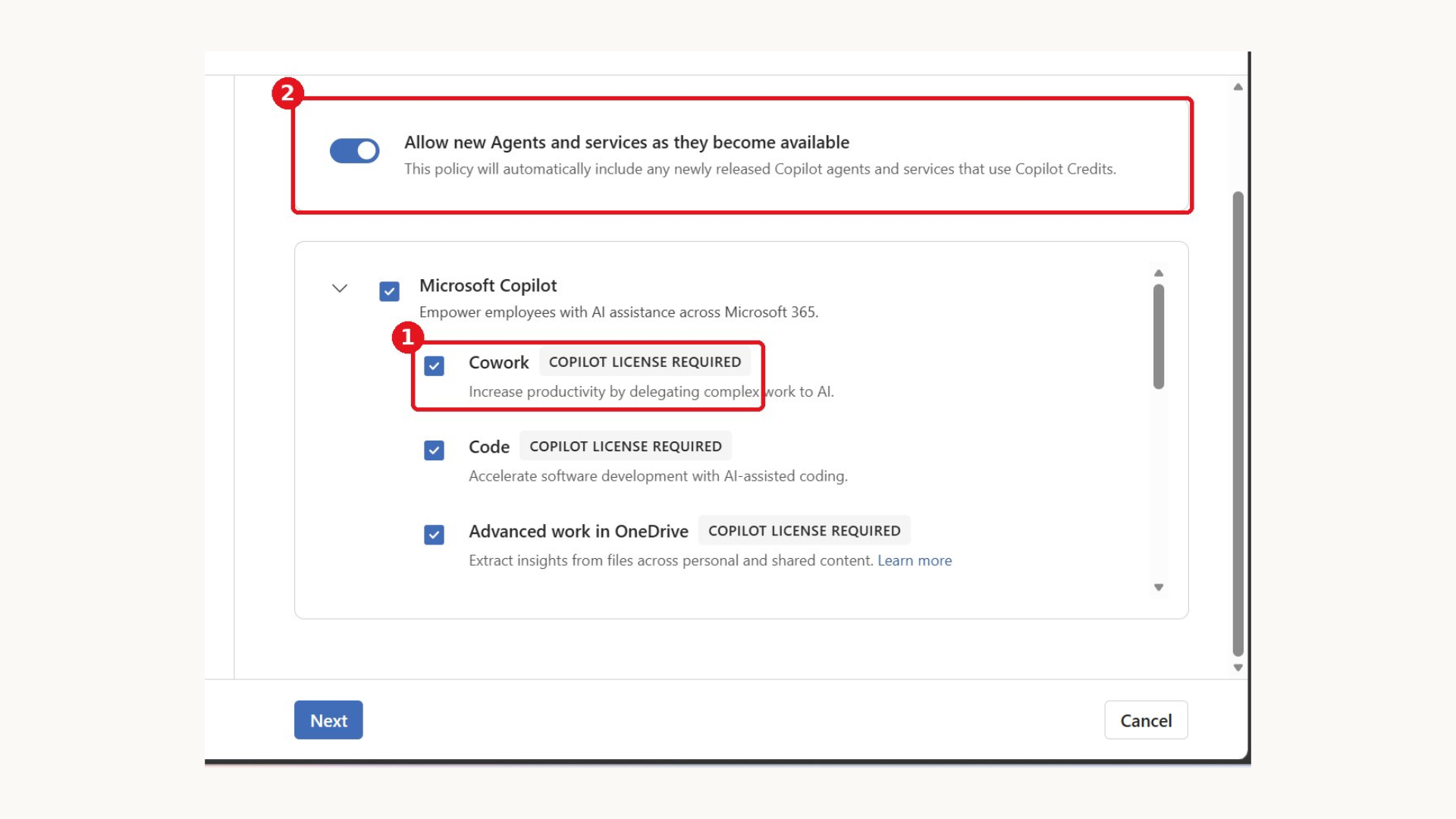
- Choose the services. Cowork, Code, Advanced work in OneDrive and SharePoint, Work IQ API and Teams Phone Agent.
- Choose who's covered. All users, or specific Entra security groups.
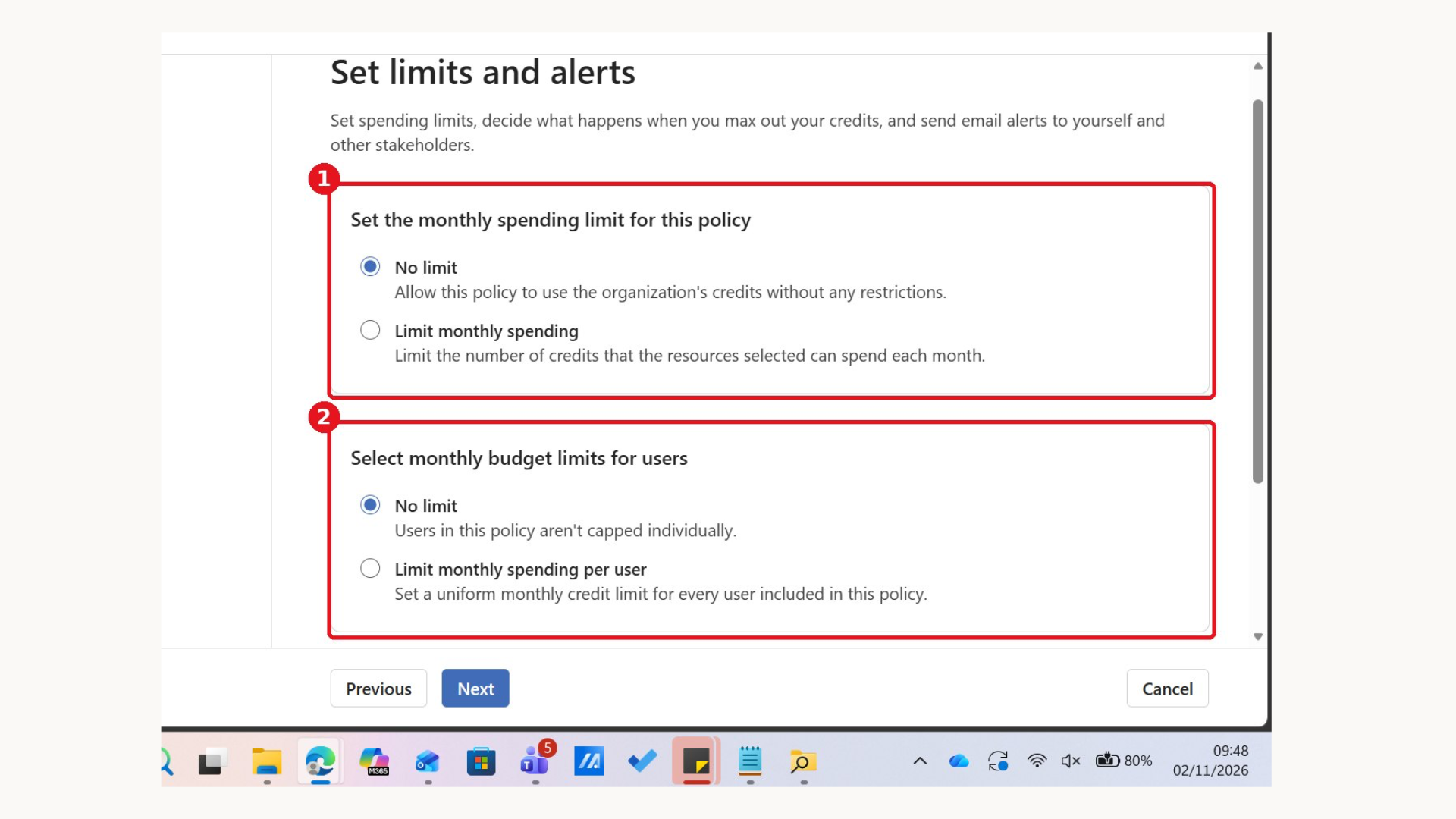
- Set the limits. A monthly limit for the policy, a per-user limit, and email alerts.
- Choose how to pay. Pay-as-you-go through an Azure subscription, prepaid P3 credits or prepaid capacity packs.
Policies control who can use which services and how much they can spend. They don't control which model people use. That's a separate setting. The per-user limit is therefore one of the only main ways to control costs.
The admin dashboard updates every four hours and shows which users and policies are getting close to their limits.
For financial services firms: map these roles to your existing approval process. The person who sets up billing does not need to be the same person who reviews irate or approves higher limits. Document who owns each decision before enabling Cowork.
Set the cost policy before people start using it
A spending limit is useful, but it is not a complete cost policy. Before giving people access, agree five things:
1. Who gets access. Star with named users or a specific Entra security group, rather than enabling paid service for everyone.
2. What they can use. Include only services needed for the pilot, such as Cowork. Do not automatically enable every usage-based service.
3. How much they can spend. Set a monthly policy limit and a per-user limit. Avoid starting with unlimited spending.
4. Who receives alerts. Give one person ownership of reviewing alerts, request for more credits and unusual usage.
5. When access is reviewed. Check usage after the first week, then review it monthly alongside your license and adoption data.
Switch off Auto-reply new services if you want to approve newly released paid services before they are added to existing spending policies. Microsoft enables this setting by default.
What happens when an employee runs out of Copilot credits?
When an employee reaches their monthly limit, they can no longer start or continue work in the usage-based service covered by that limit. For example they may be unable to start another Cowork task or run an Automation.
They can request more credits from whoever manages the company's spending policy. That person can approve a higher limit if the work justifies the additional cost. Otherwise, the employee must wait until the limit resets.
Reaching the limit does not remove their Copilot license. Features included in the license, such as Copilot Chat and scheduled prompts, remain available.
If an employee is blocked earlier than expected, check both their individual limit and any wider group or policy limit.
Three gotchas worth knowing
1. A policy is an access pass, not just a budget.
Anyone in a policy that includes Cowork can use it, even with a tiny limit. New policies cover All users unless you pick specific groups. To keep someone out, leave them out of every Cowork policy.
2. New services are added automatically.
The Auto-apply new services setting is on by default, so policies pick up new paid services as Microsoft releases them. If you'd rather review them first, turn it off.
3. Group limits can override yours.
If you're part of a group plan, your credits may come from a shared monthly limit. You might see credits left in your own allowance and still be blocked because the group has hit its overall limit. Point people to whoever manages credit limits in your organisation, and expect a few confused support tickets.
Start with a controlled budget
You do not need to predict every task before you begin. Start with a small group, a defined set of uses and a monthly limit you are comfortable spending.
Review the results after the first week to catch unexpected consumption. At the end of the month, look at three things:
-
which tasks used the most credits
-
whether those tasks proceed enough value to justify the cost
-
whether limits, access or working practices should change
That gives you a real baseline for the next month. You can increase the limit where Cowork is doing valuable work, reduce it where people are using it unnecessarily, or move repeatable drafting and summarising tasks back to Copilot Chat.
Want help setting it up or have any other questions about Copilot? Talk to us.
FAQ