.png?width=200&height=200&name=dovetail%20workmarklogo%20(1).png)

Site skills make it possible to turn a repeatable process into something a whole team can use through Copilot in SharePoint.
But there is an important distinction between using a skill and editing the files behind it.
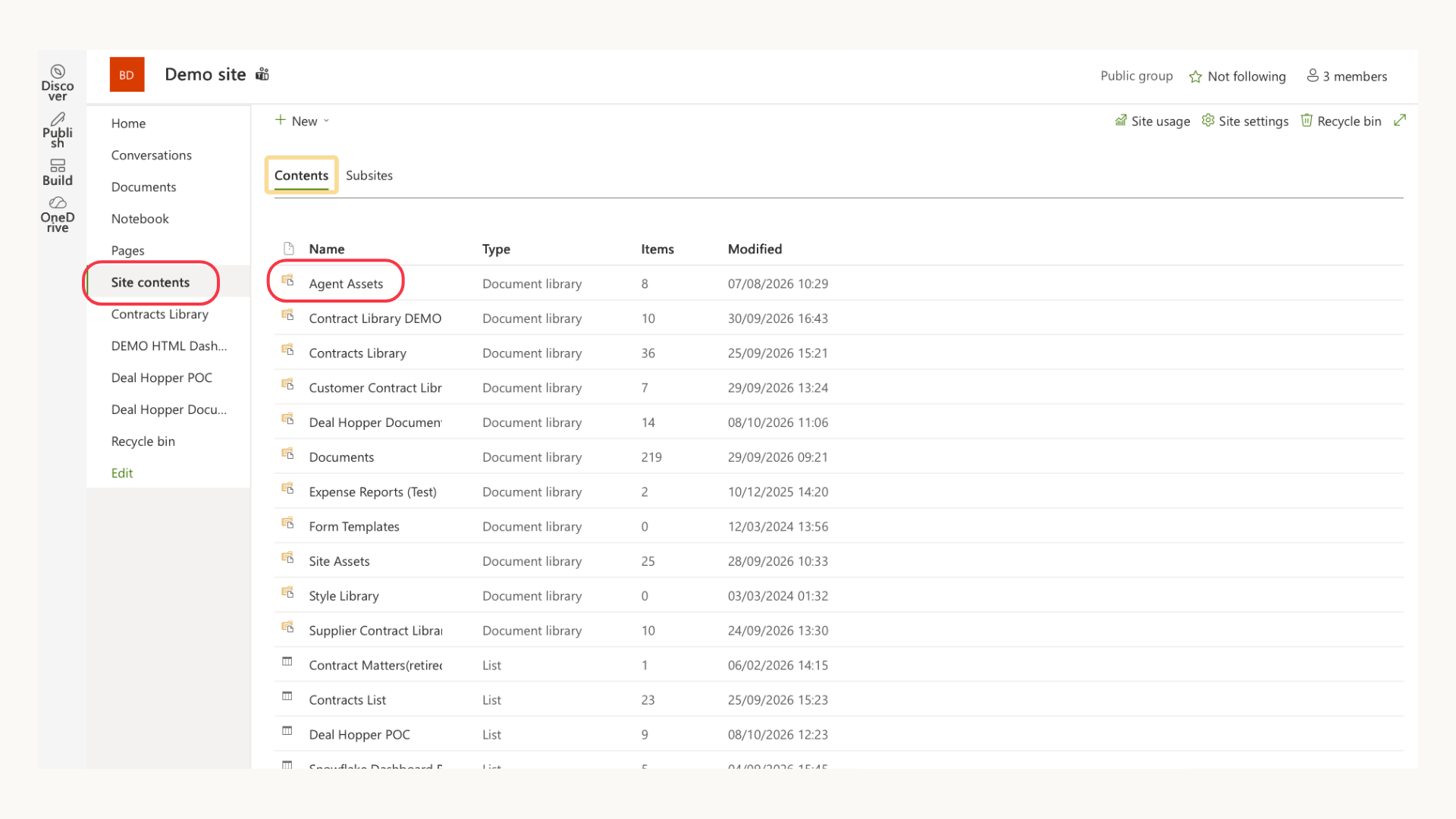
By default, people with Edit permission on a SharePoint site can create site skills, while people with View permission can use them. Site skills are stored in the site’s Agent Assets library, inside the Skills folder.
If everyone has edit access to that folder, team members may also be able to change the skill instructions. For a centrally managed skill, that may not be what you want.
Which skills this guide covers
This guide applies specifically to SharePoint site skills. These are reusable workflows designed for people on the same SharePoint site to use consistently.
They are different from:
- Personal skills, which are owned by an individual and stored in that person’s OneDrive.
- Built-in skills, which are created and maintained by Microsoft and are not stored in OneDrive or the Agent Assets library.
- SharePoint agents, which are separate from site skills and are managed as .agent files.
This distinction matters because changing permissions on the site’s Skills folder controls access to site skills only. Microsoft confirms that personal skills are stored in OneDrive, while built-in skills are not stored in OneDrive or the Agent Assets library.
Where SharePoint site skills are stored
SharePoint site skills are stored in the associated site’s Agent Assets library. Each skill has its own folder and an underlying SKILL.mdfile:
/Agent Assets/Skills/<skill-name>/SKILL.md
To find them, open the relevant SharePoint site and select:
Site contents → Agent Assets → Skills
You do not need to create the Agent Assets library manually. Copilot activates Agent Assets and creates the library when the first site skill is created.
Make the Skills folder read-only
The practical solution is to give the Skills folder its own permissions.
This placement keeps the blog logical: what is being controlled → where it is stored → how to control it.
Make the Skills folder read-only
The practical solution is to give the Skills folder its own permissions (you must have admin or site owner permissions).
- Open the site’s Agent Assets library.
- Select the Skills folder.
- Select Manage access.
- Open the advanced permission settings and stop the folder inheriting permissions from its parent where required.
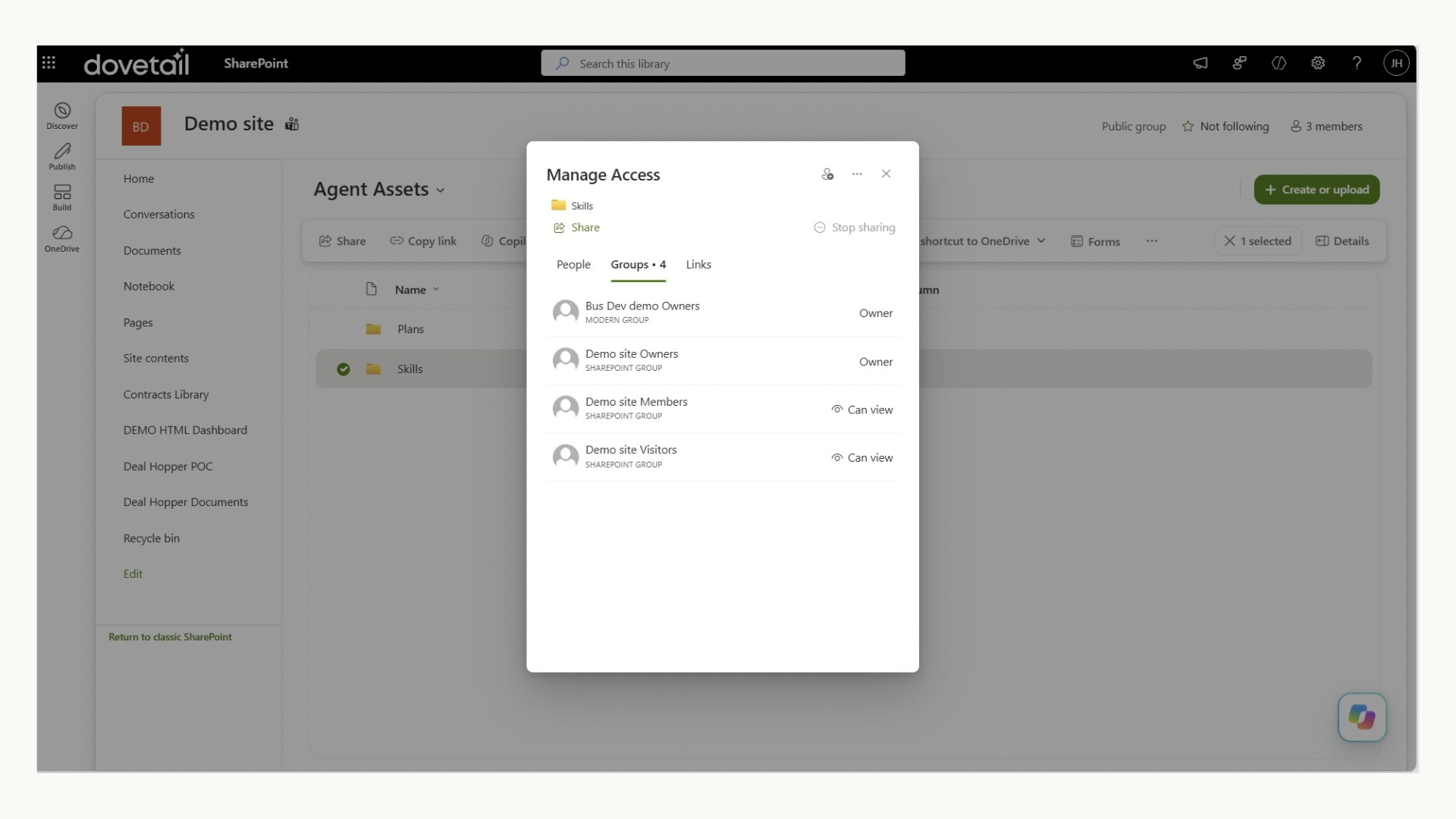
- Keep the site owners or designated skill managers as Owners or editors.
- Give the site’s member and visitor groups Can view access.
In the owner view below, the owners retain control of the folder, while the site members and visitors have Can view access.
The result is a simple operating model:
- Site owners or nominated skill managers can create, update and maintain the skills.
- Team members can access and use the skills through Copilot without being able to edit the underlying files.
- People without access to the folder will not be able to see or use those site skills.
Microsoft supports applying standard SharePoint governance, including permissions, retention, sensitivity labels and auditing, to site skill files.
Check existing access carefully
Adding a view-only permission does not necessarily remove edit access that someone already has through another group, direct permission or sharing link. SharePoint sharing usually grants permissions rather than replacing stronger existing access.[
After making the change, use Check permissions or test with a standard member account. Confirm that the person can run the skill but cannot open and modify its SKILL.md file.
What to take away
You do not need a separate control system to make SharePoint skills reusable without making them editable by everyone.
Treat the Skills folder like any other governed SharePoint resource: keep edit access with a small group of owners and give the wider team view-only access. The team gets a consistent, reusable workflow, while administrators retain control of the instructions behind it.
We have a series on automation in SharePoint, each blog building on top of the previous one. To read that click here.
For everything Copilot and M365 check out our blogs or contact us using the form below.